Edit nodes and Bézier curves
Use Edit nodes to reshape one path. Select an unlocked outline and open the Curve nodes ribbon. Use Position, size and snapping when you want to move or resize the entire object.
Download Curve with two Bézier segments. Import the sample, select the outline and enter Edit nodes. Insert a node on a segment, then drag a handle and use Undo to compare the result.
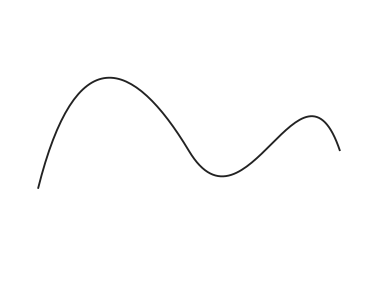
Move anchors and handles
An anchor lies on the outline. A Bézier handle controls the curve entering or leaving an anchor. Drag an anchor to move that point, or drag a handle to change the curve near it. At a joined Bézier node, use Corner for a sharp joint, Smooth to align the handles, or Symmetric to align them and match their lengths.
Insert or delete a node
| Command | Result |
|---|---|
| Convert to curve | Turns lines or polylines into cubic Bézier segments. Straight segments keep their shape until you move a handle. |
| Insert node | Splits the selected segment at its midpoint. On an anchor it uses the following segment, or the preceding one at the last endpoint. Inserting preserves the outline. |
| Delete node | Removes the selected anchor after confirmation. The adjoining curve can change, and deleting an endpoint can open a closed Bézier path. |
Check the edited outline
After changing a path on a Fill layer, look for gaps and inspect a fresh job preview. Use Ctrl+Z if the result changed more than intended. Select the node again after Undo before making another edit.